
The big claim
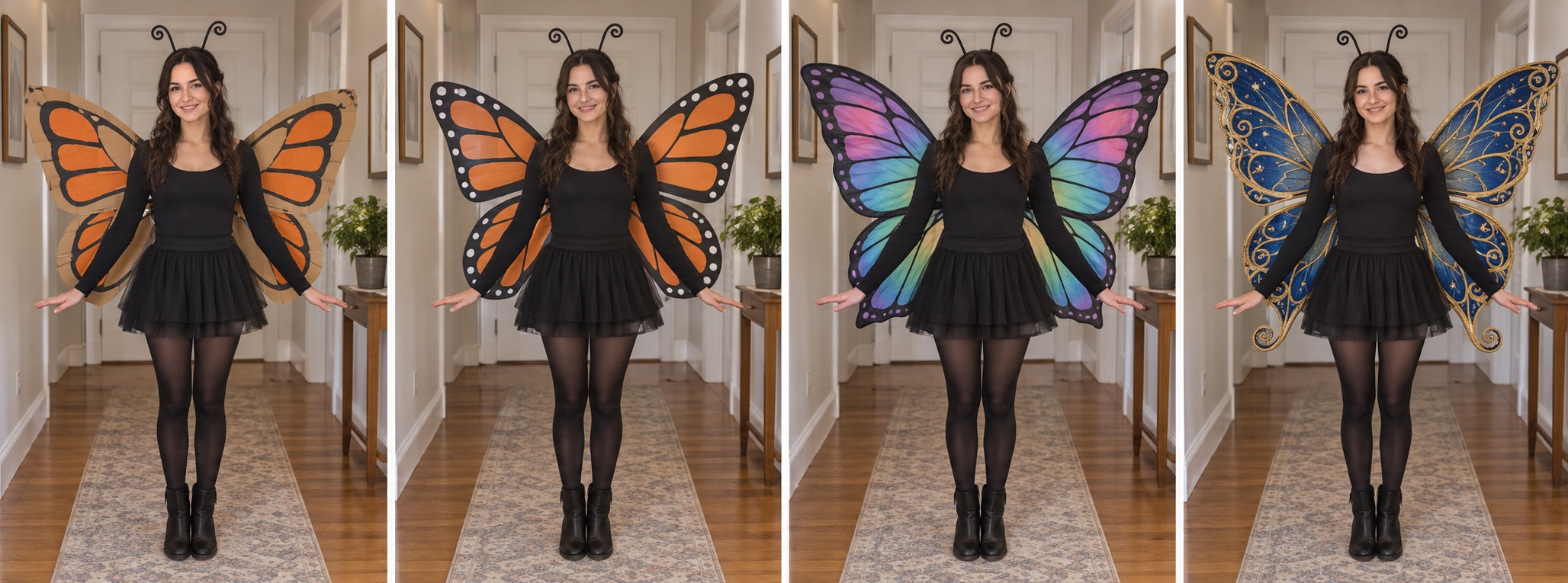
A polished, extravagant version of the costume.
Turn one costume photo into a playful reveal. Create three versions, from extravagant to nearly honest, then place your untouched original at the end of the carousel.
Start with your photoYour photo is uploaded when you start the edit. Review the result before sharing.
 Original photoEdited photo
Choose a photo on the left. Your original and edited result will appear here.
Each click creates one image and uses the credits shown in the editor. Save each result before making the next stage. A supported editing model must be connected.
A polished, extravagant version of the costume.
The same idea, with fewer upgrades.
Only a slight improvement over the real photo.
Your untouched upload is the punchline.
Fictional AI example showing a costume reveal, not a real user result.
The three prompt buttons are starting points. Replace “butterfly” with your own costume claim and adjust the details to fit your photograph.
Upload a JPG, PNG, or WebP photo that you own or have permission to edit. Keep the source file unchanged for the final slide.
Use the biggest-lie prompt first. Download the result, then choose the smaller-lie and almost-honest prompts. Each generation is a separate edit from the same uploaded original and has its own credit cost.
Place the polished image first, then the two milder edits, and finally your untouched source photo. Add captions and any available sound in the app where you publish.
The contrast works when viewers see the best version first and only discover the real costume at the end. Save the original separately so it never gets replaced by an AI recreation.
AI edits may alter facial features, age, hands, clothing, or the room even when prompted to preserve them. Compare each result with the source and retry when the person no longer looks like themselves.
Use your own photo or one you are authorized to edit and post. For a childhood image, consider the subject's privacy before publishing. This page makes still images; it does not provide a social platform template or sound.
It is a staged photo reveal: AI-enhanced versions of a real picture build an exaggerated claim, and the untouched original provides the final joke. Costume photos are a common example, but the structure can work with other personal photos.
No. The editor generates one image per request. Use the three prompt presets in sequence, save each result, and add your original file as the last slide.
This tool produces still image edits. You can assemble the images in a social carousel or video editor and choose a sound there.
Exact consistency is not guaranteed. Use the same original photo for each edit, ask to preserve identity and framing, and inspect all three outputs before posting.